Connect your account
How to import your MT4, MT5 or cTrader trade history
Export a statement from MetaTrader 4, MetaTrader 5 or cTrader and import it into Alchemyfolio in under two minutes. Works on the free plan and never creates duplicates.
Importing a statement is the quickest way to fill your journal with past trades. It works on every plan, with MetaTrader 4 and 5 HTML reports, cTrader history and CSV files from any platform. Importing the same file twice never duplicates trades, so you can re-import an updated statement any time.
Step 1: Export your history
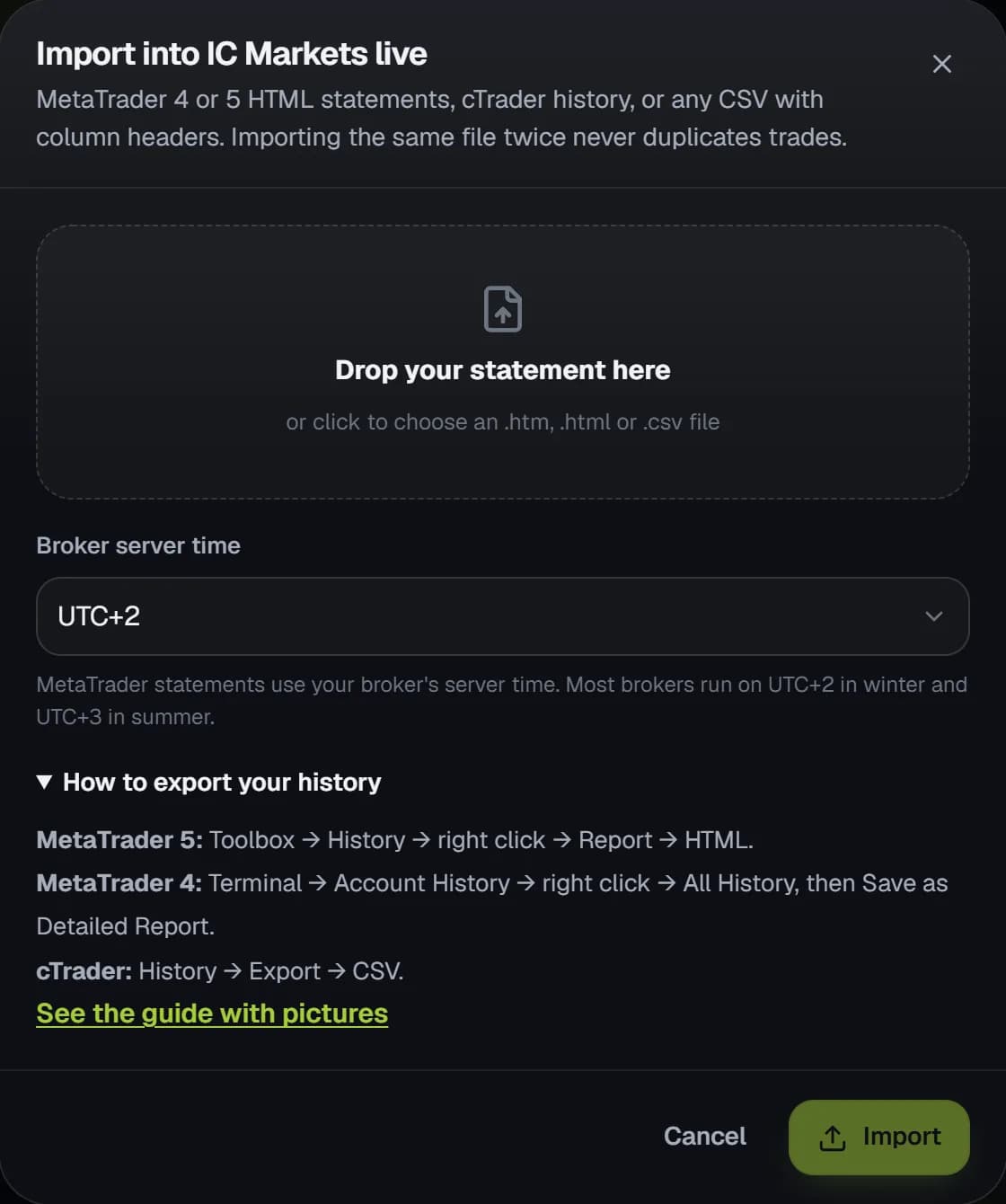
- MetaTrader 5
Open the Toolbox (Ctrl+T), go to the History tab, right click inside it and choose Report, then HTML. Pick the period you want, for example All History, and save the file.
- MetaTrader 4
Open the Terminal (Ctrl+T), go to Account History, right click, choose All History, then right click again and choose Save as Detailed Report.
- cTrader
Open History, click Export and choose CSV.
- Any other platform
Export your closed trades as a CSV file with column headers, for example from TradeLocker, Match-Trader or DXtrade.
Step 2: Import it into Alchemyfolio
- Open the account
Go to Accounts. If you have not added the account yet, click Connect account, choose Import a statement and name the account. Otherwise click Import on the account card.
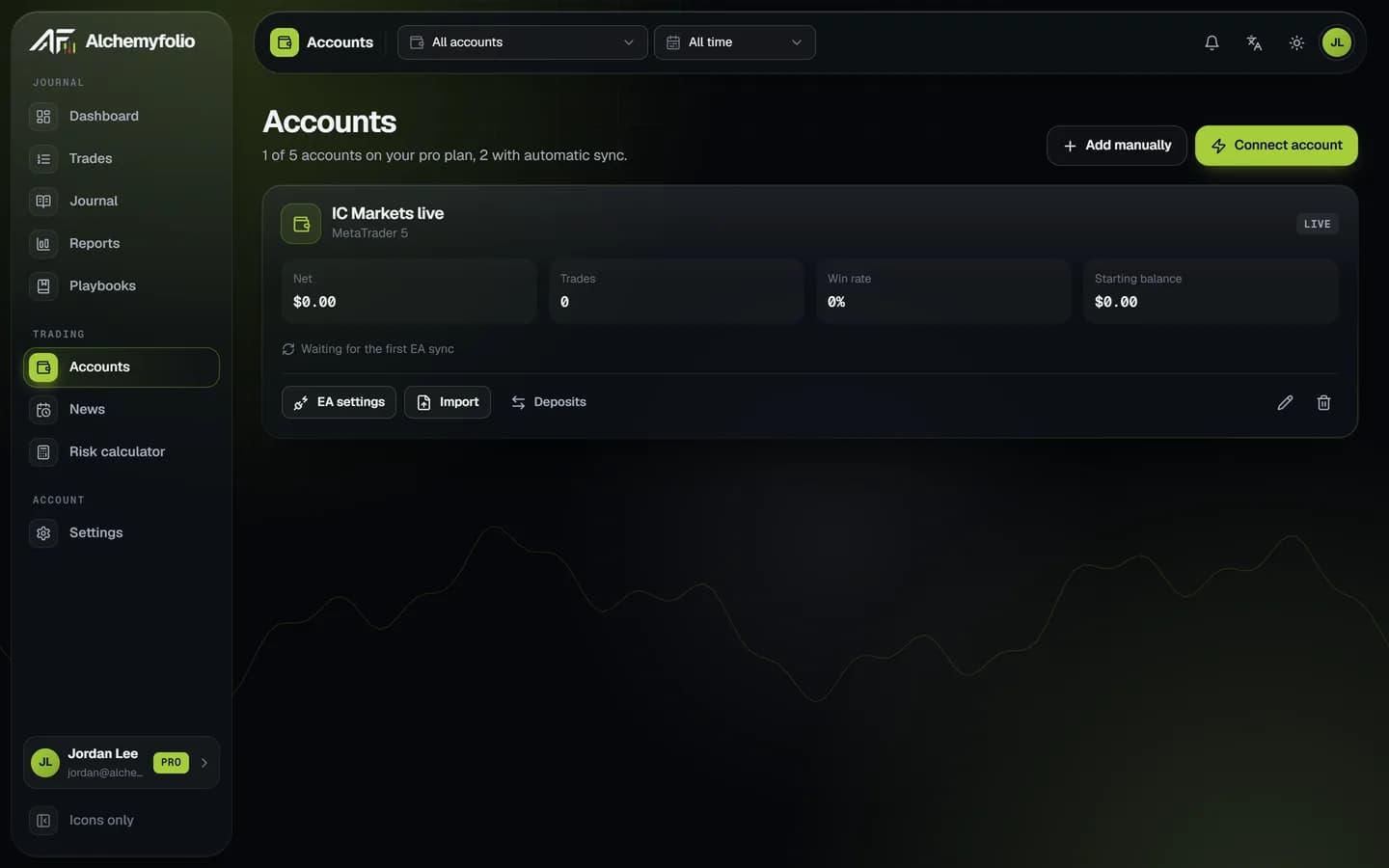
- Drop the file
Drag your statement into the box, or click it to choose the file.
- Set the broker server time
MetaTrader statements use your broker's server time, not yours. Most brokers use UTC+2 in winter and UTC+3 in summer. Pick the one your broker uses so trade times and sessions are correct.
- Click Import
Your trades appear in your journal, dashboard and reports straight away.
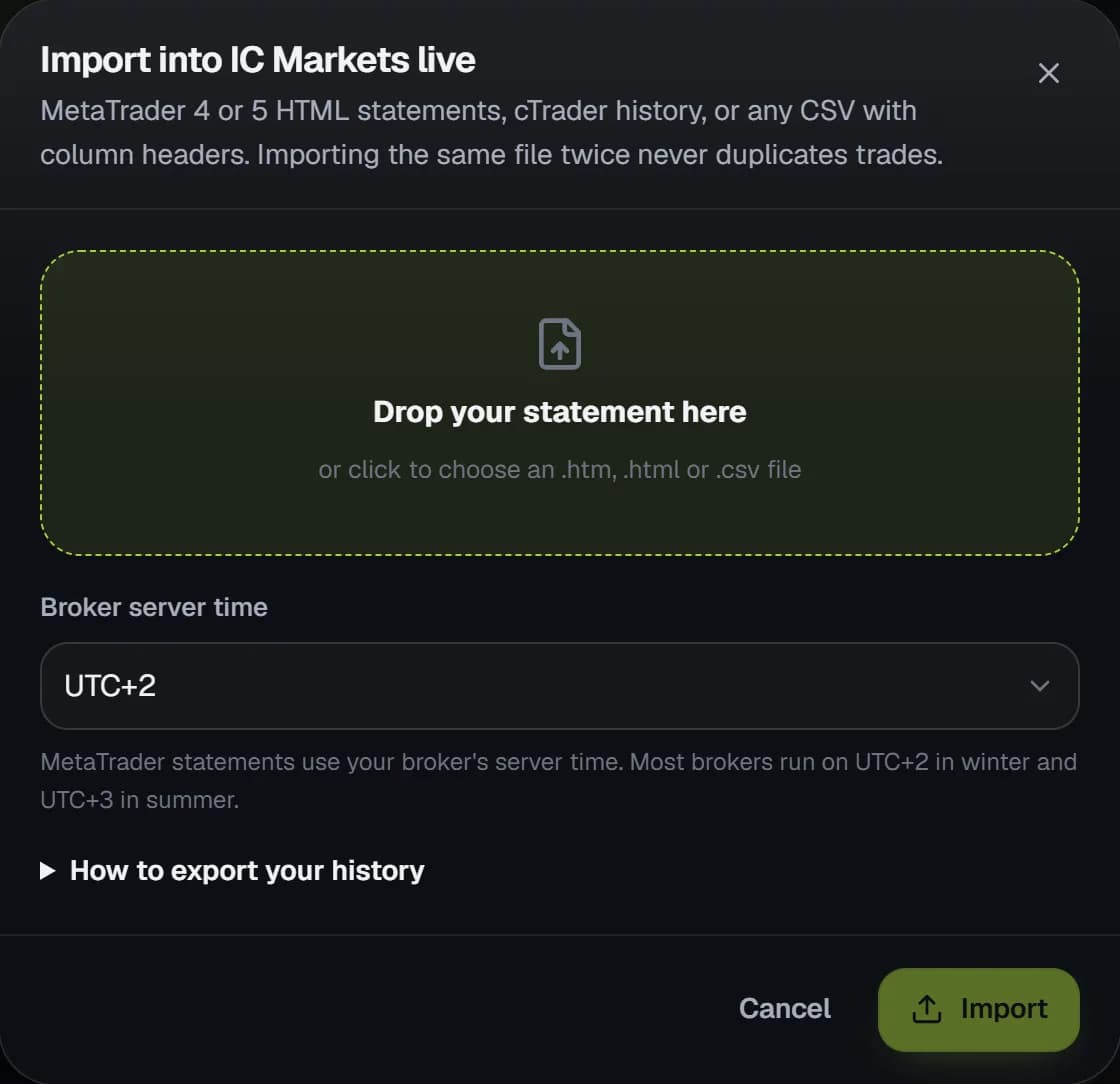
Forgot where the export is? Open How to export your history inside the Import window for a quick reminder.
Tips
Some trades are missing
Check the period you exported. In MetaTrader choose All History before saving the report, then import the file again. Trades you already have are skipped.
Trade times look a few hours off
The broker server time was set wrong. Import the same file again with the right offset. Ask your broker or look at the time in MetaTrader's Market Watch if you are not sure.
Can I keep it updated automatically?
Imports are one-off. To keep syncing new trades, use the free MetaTrader EA, or automatic sync with your investor password on Pro.