Connect your account
How to connect MetaTrader 4 or 5 with the free Alchemyfolio EA
Step by step with pictures: download the free read-only EA, allow the web address, paste your sync key and see your MT4 or MT5 trades in Alchemyfolio within a minute.
The free Alchemyfolio EA is a small read-only program that runs inside your MetaTrader terminal. It sends your closed trades, deposits and balance to your journal. It never opens, changes or closes a trade, and it works on every plan, including Free.
Your trades only sync while MetaTrader is open with the EA running. If you want syncing that keeps going when your computer is off, use automatic sync with your investor password on Pro, or run MetaTrader on a VPS.
What you need
- MetaTrader 4 or MetaTrader 5 installed on a Windows computer or VPS, logged in to the account you want to journal
- An Alchemyfolio account, free is fine
- About 5 minutes
Step 1: Add the account in Alchemyfolio
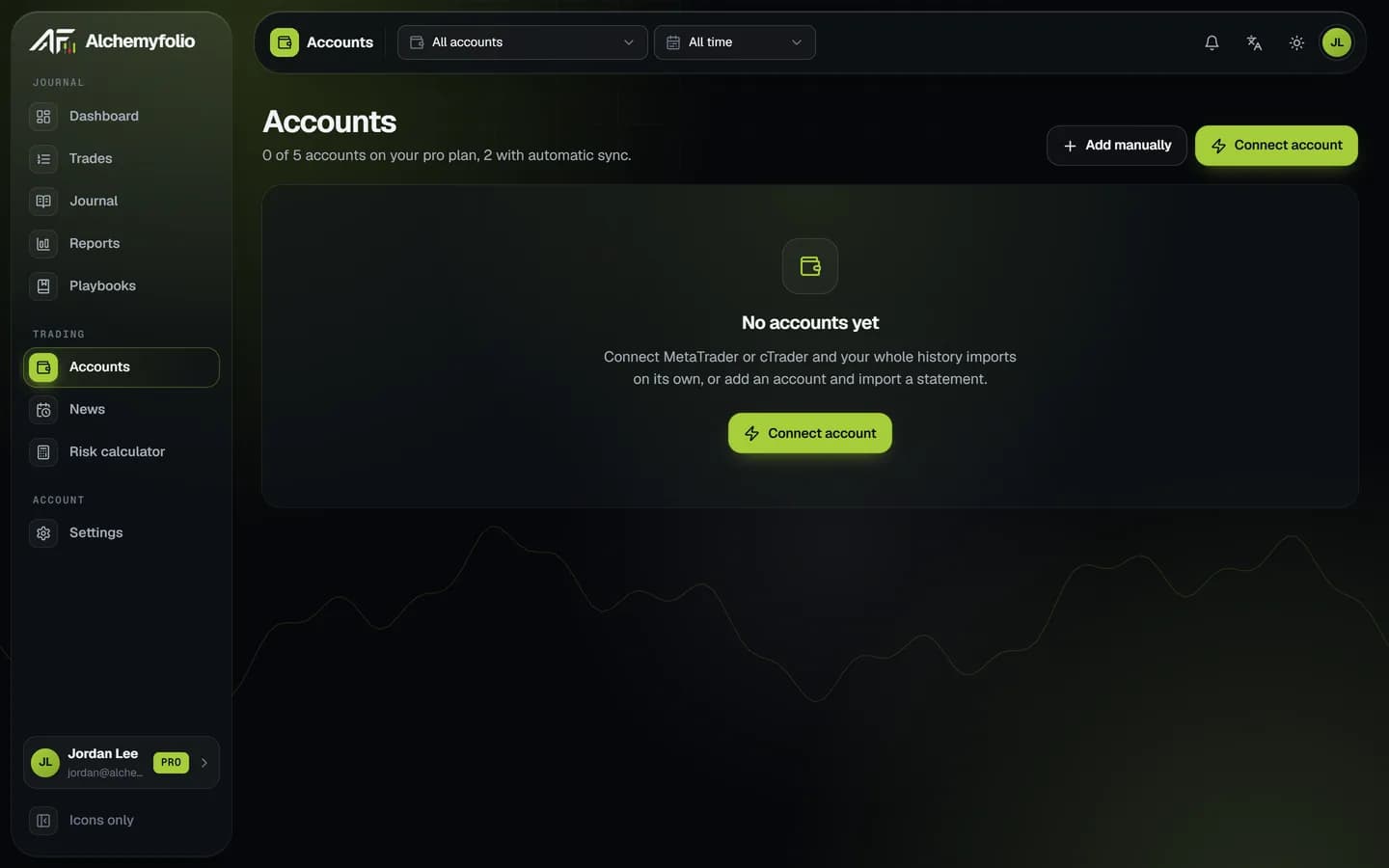
- Open Accounts
Sign in, open Accounts from the side menu and click Connect account.
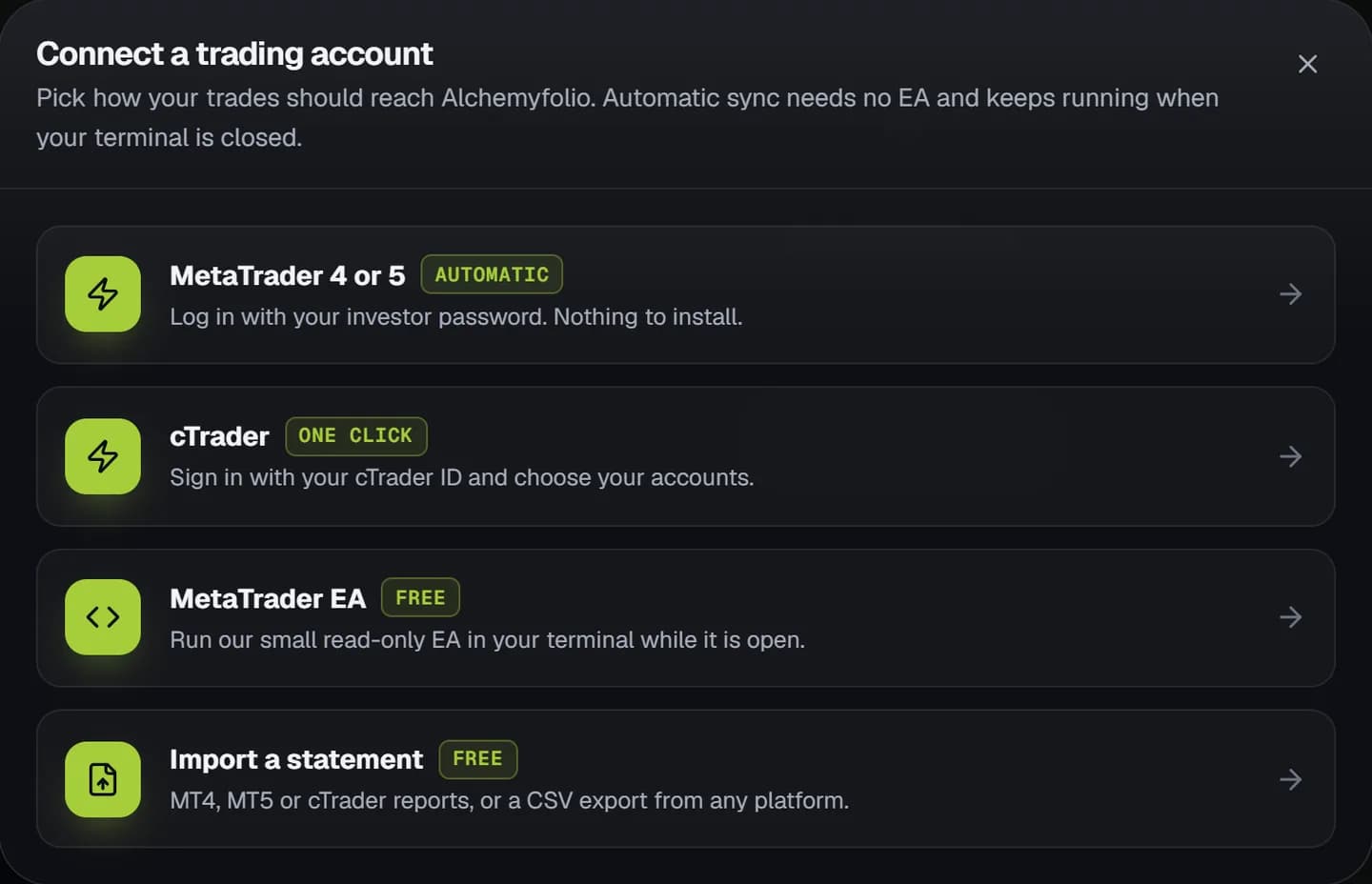
- Choose MetaTrader EA
Pick MetaTrader EA, marked Free.
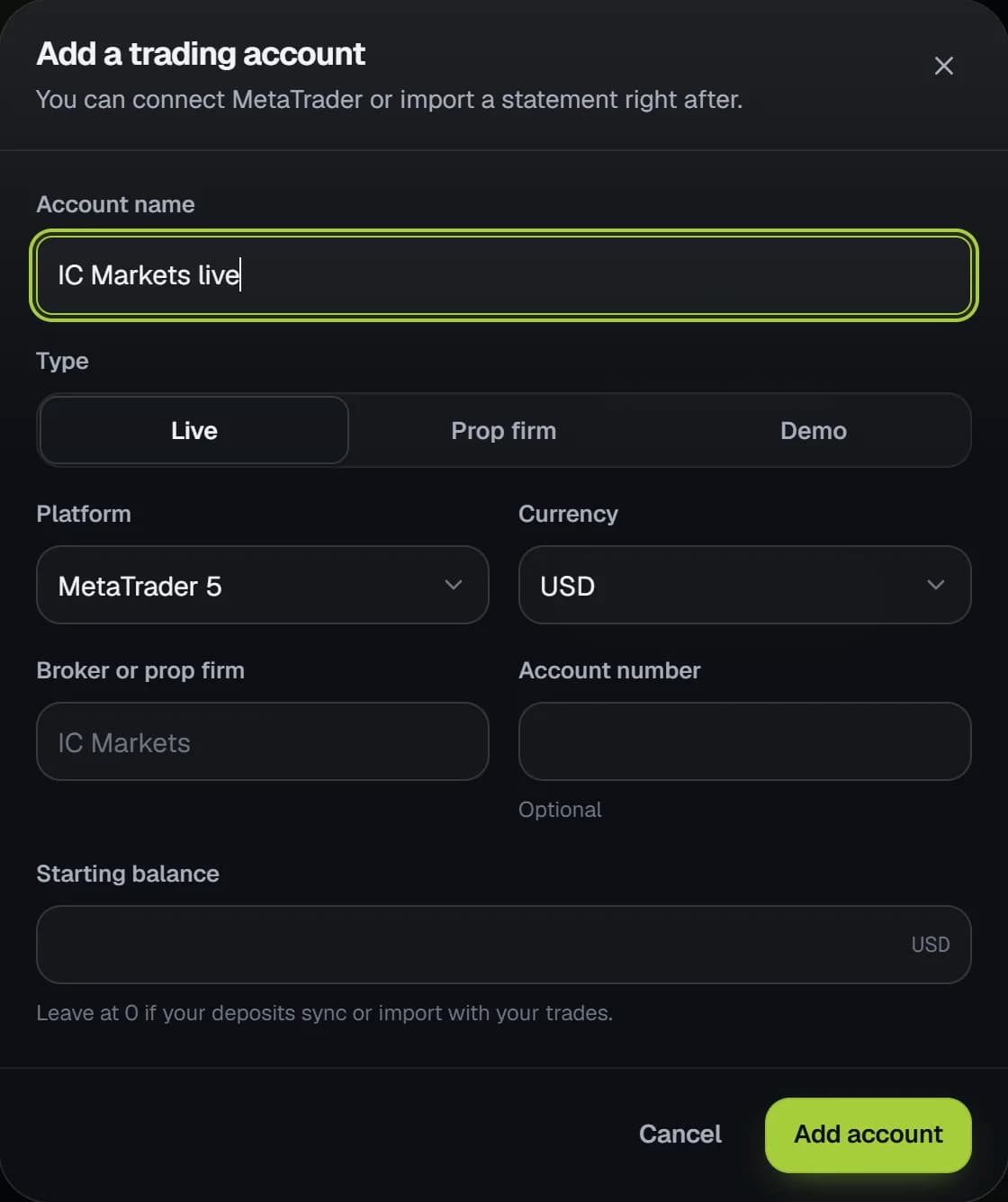
- Name the account
Give it a name you will recognise, like
IC Markets live, choose Live, Prop firm or Demo, set the platform to MetaTrader 5 or MetaTrader 4, and click Add account.
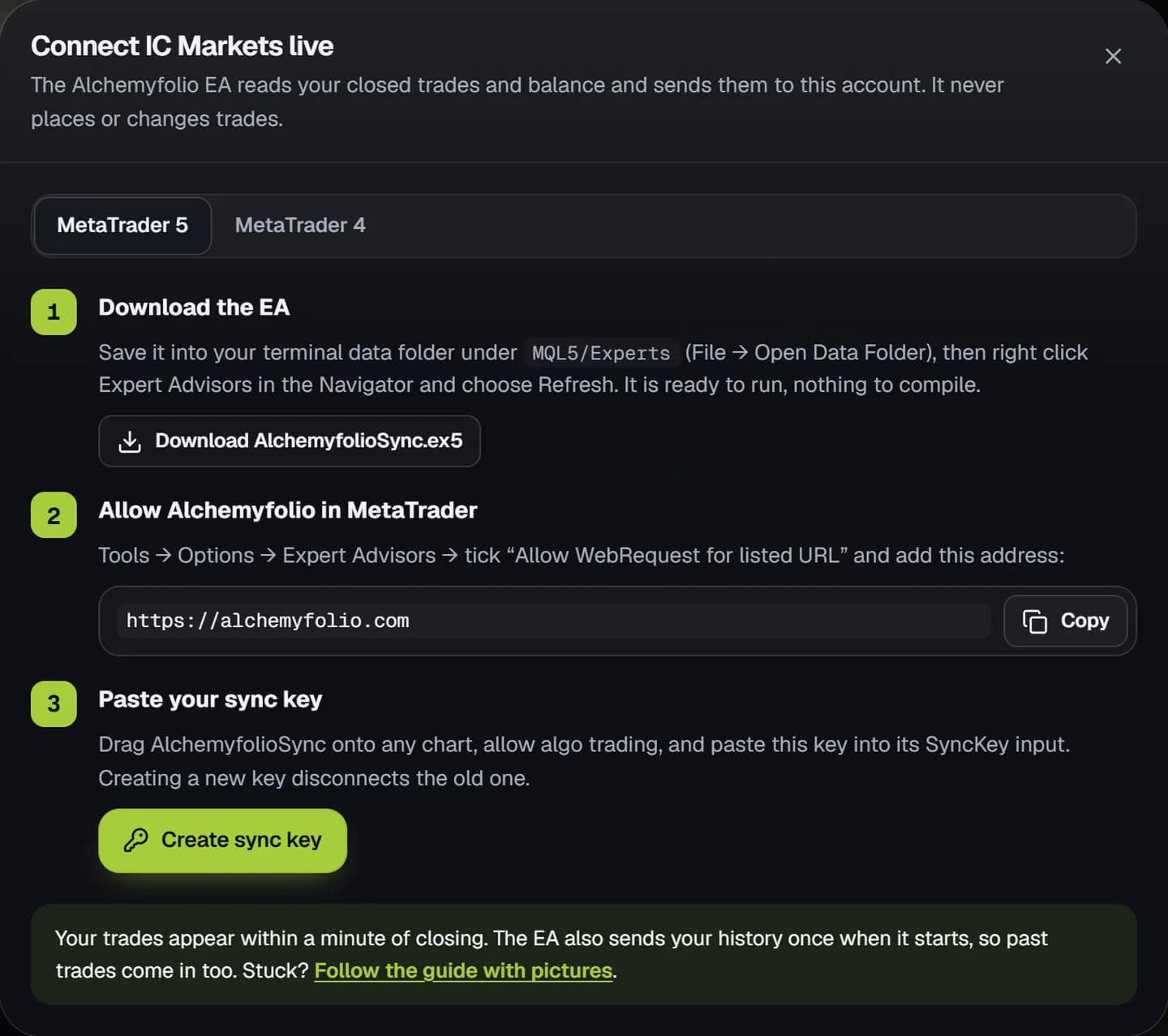
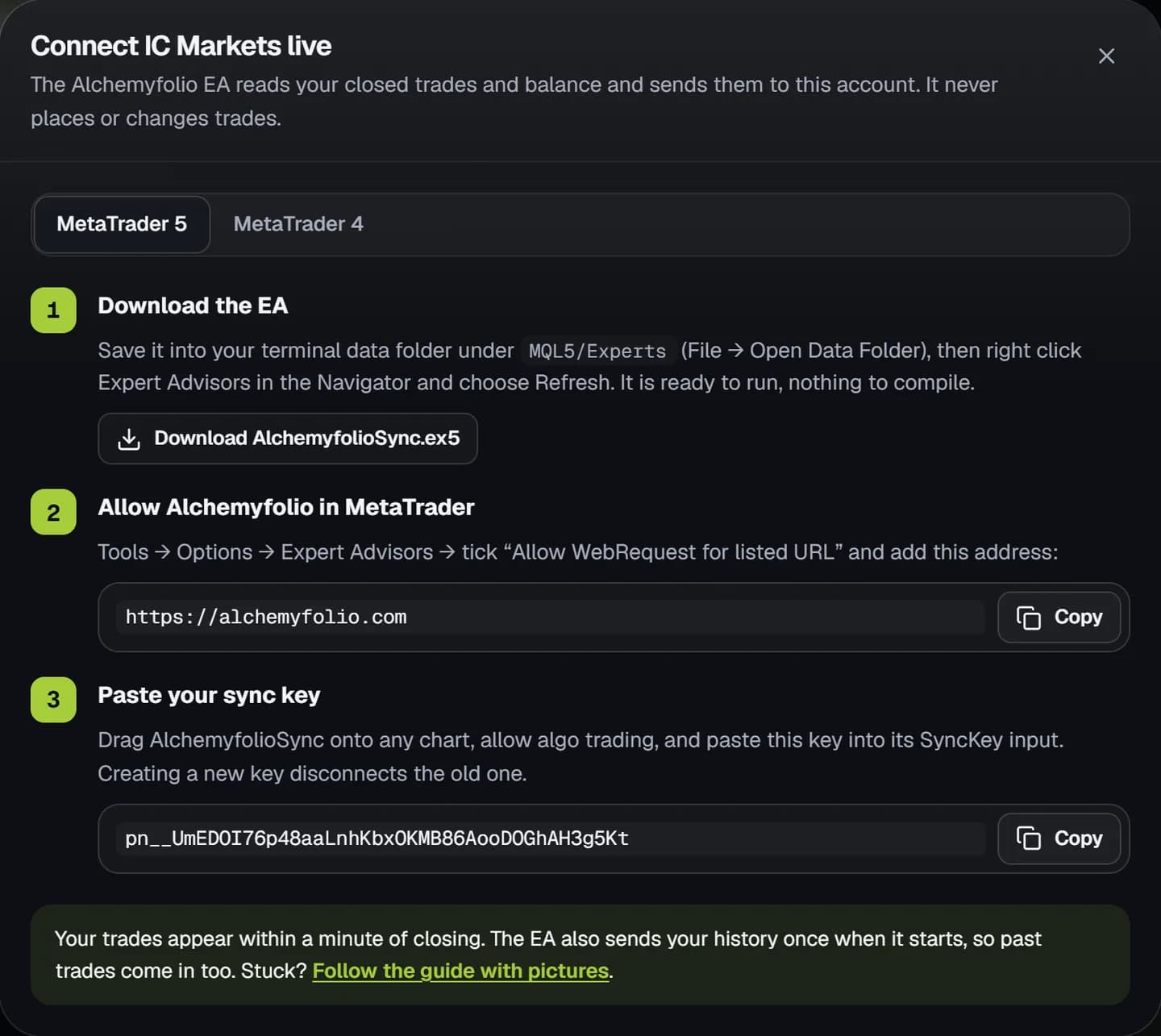
Alchemyfolio now shows the three connection steps for that account. Keep this window open, you will copy two things from it.
Step 2: Put the EA into MetaTrader
- Download the EA
Choose MetaTrader 5 or MetaTrader 4 at the top of the window and click the download button. You get a ready-to-run file,
AlchemyfolioSync.ex5orAlchemyfolioSync.ex4, so there is nothing to compile. - Open the data folder
In MetaTrader click File, then Open Data Folder. Open
MQL5thenExpertson MetaTrader 5, orMQL4thenExpertson MetaTrader 4, and move the downloaded file into that folder. - Refresh the Navigator
Back in MetaTrader, right click Expert Advisors in the Navigator and choose Refresh. AlchemyfolioSync now appears in the list.
Step 3: Allow Alchemyfolio's web address
MetaTrader blocks EAs from sending data anywhere until you allow the address. This is the step most people miss.
- Open the Expert Advisors settings
Click Tools, then Options, then the Expert Advisors tab.
- Allow algo trading
Tick Allow algorithmic trading on MetaTrader 5, or Allow automated trading on MetaTrader 4. The EA does not trade, but MetaTrader needs this switched on for any EA to run.
- Add the address
Tick Allow WebRequest for listed URL, click Add new URL, paste
https://alchemyfolio.com(use the Copy button in Alchemyfolio) and click OK.
Step 4: Paste your sync key and start it
- Create your sync key
In Alchemyfolio click Create sync key, then Copy.
- Attach the EA to a chart
Open any chart, for example EURUSD, and drag AlchemyfolioSync from the Navigator onto it. One chart is enough for the whole account.
- Allow it and paste the key
On the Common tab tick Allow Algo Trading (Allow live trading on MetaTrader 4). On the Inputs tab double click SyncKey, paste your key and click OK.
- Turn on Algo Trading
Make sure the Algo Trading button in the MetaTrader toolbar is green (AutoTrading on MetaTrader 4). The EA icon in the top right corner of the chart should look active, not grey or crossed out.
Step 5: Check it worked
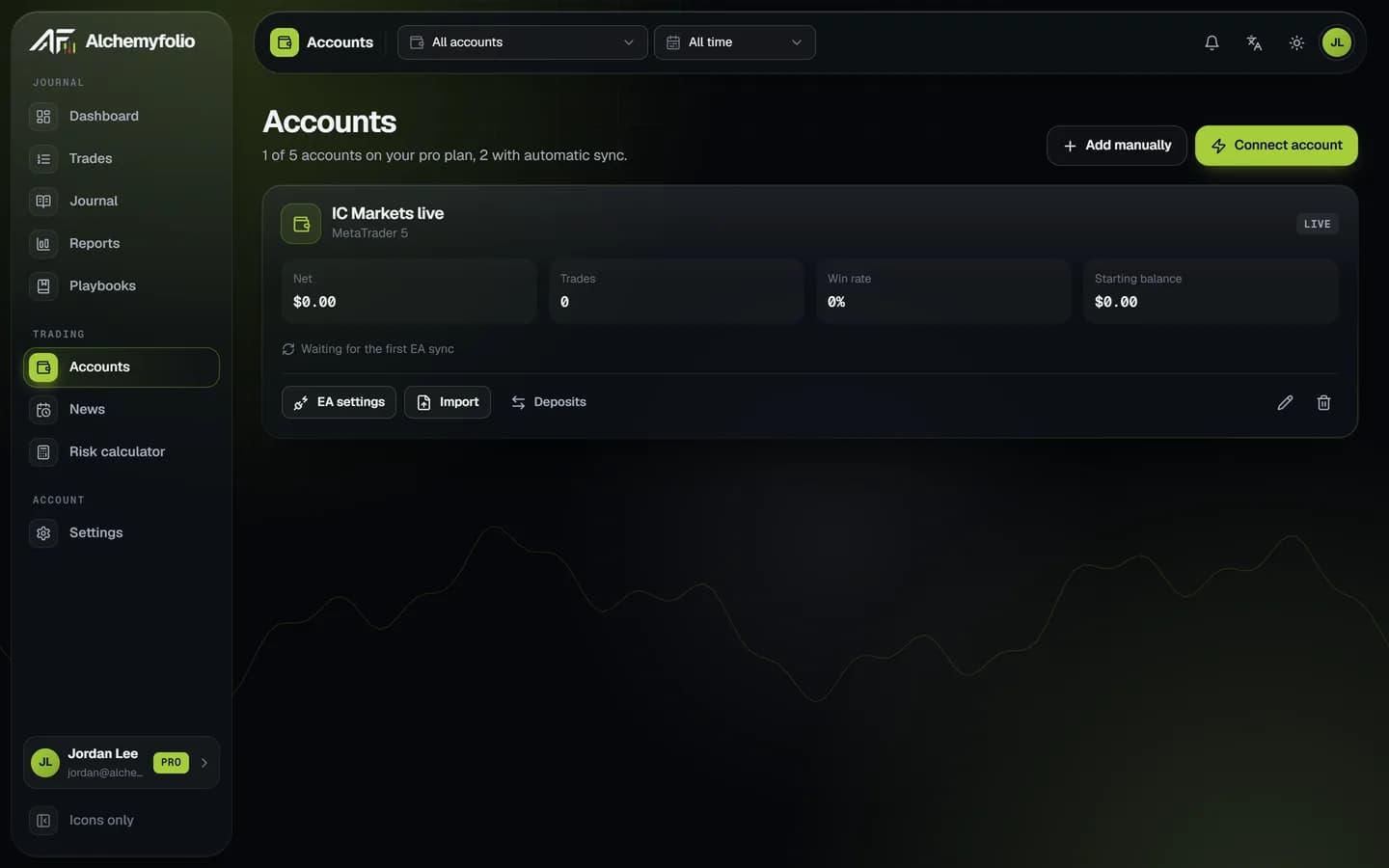
Within about a minute the EA sends your trade history for the last year, then any new trade a minute after it closes. Your account card changes from Waiting for the first EA sync to show your trades and balance.
If it does not sync
Open the Experts tab at the bottom of MetaTrader, in the Toolbox (Ctrl+T). The EA writes a message there whenever something is wrong:
“Alchemyfolio: allow WebRequest for … in Tools > Options > Expert Advisors.”
The web address is not allowed yet. Repeat step 9 and make sure you added exactly https://alchemyfolio.com, with no space or slash at the end.
“Alchemyfolio: the sync key was refused.”
The key was mistyped or replaced. In Alchemyfolio click EA settings on the account, create a new key, and paste it into the EA's SyncKey input again. Creating a new key disconnects the old one.
“Alchemyfolio: paste the sync key from Alchemyfolio into the SyncKey input.”
The SyncKey input is empty. Right click the chart, choose Expert list, select AlchemyfolioSync, click Properties and paste the key on the Inputs tab.
“Alchemyfolio: could not reach Alchemyfolio … Will retry.”
Your internet or a firewall blocked the request. The EA retries on its own, so check your connection and wait a minute.
Nothing appears in the Experts tab
The EA is not running. Check that the Algo Trading button is green, that the EA icon on the chart is active, and that the file is in the Experts folder and shows in the Navigator after Refresh.
My trades stopped syncing
MetaTrader was closed or the computer went to sleep. Open it again and your missed trades sync on their own. To never miss trades, run MetaTrader on a VPS or switch to automatic sync.